Embedded and desktop apps
Kiosk browser: how to lock one down, and when to build your own
By Daniyal Sheikh, Chromium Integration Engineer
Technically reviewed by Usman Khan, Lead Chromium Developer
Published 7 min read
This guide covers what the built-in options lock down, where they stop, and what it takes to build your own, with the exact settings from Microsoft’s, Google’s and Android’s documentation. For the engine choice behind a custom kiosk, read CEF vs WebView2 vs WKWebView.
What is a kiosk browser?
A kiosk browser shows one web app or a short list of approved sites, full screen, on a shared device, and stops users from leaving it. It hides the browser’s menus and address bar, blocks shortcuts, clears each user’s session and restarts itself if it closes.
Kiosk browsers run check-in desks, ticket machines, digital signs, library catalogues, self-service ordering screens and exam stations. They all need the same thing: one experience, no way out, and a clean start for the next person.
What are your options for a kiosk browser?
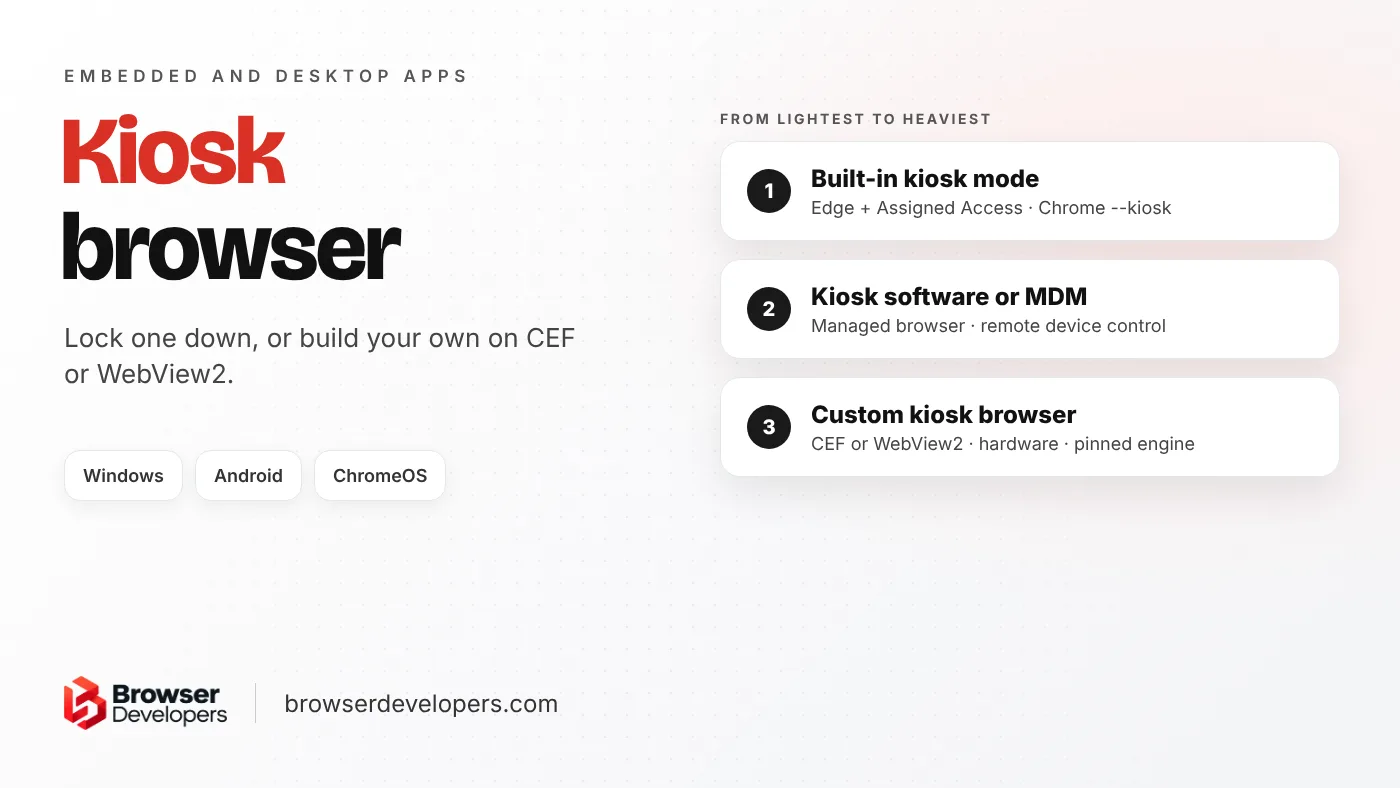
From lightest to heaviest: a built-in kiosk mode (Edge with Windows Assigned Access, or Chrome’s kiosk switch), ready-made kiosk software or device management, and a custom kiosk app built on CEF, WebView2 or Android WebView. Pick the lightest one that meets your lockdown needs.
| Option | What you get | Good fit when | Limits |
|---|---|---|---|
| Built-in kiosk mode (Edge + Assigned Access, Chrome --kiosk) | Full-screen browser, blocked shortcuts, session reset (Edge) | One web app on Windows, no special hardware | Lockdown and hardware support stop at what the browser offers |
| Kiosk software or device management (MDM) | A managed kiosk browser plus remote device control | A fleet of tablets or PCs managed in one place | Their feature set and licence; less control of the engine |
| Custom kiosk browser (CEF, WebView2, Android WebView) | Your own app: any UI, hardware bridge, pinned engine | Hardware, custom UI or strict lockdown needs | You build and maintain it |
How do you set up a kiosk browser on Windows?
Use Windows Assigned Access with Microsoft Edge. Assigned Access runs Edge full screen above the lock screen and restarts it if it closes. Edge then offers a full-screen signage mode or a limited multi-tab public browsing mode, both in InPrivate sessions.
Two Windows features work together. Windows Assigned Access runs a single app or Microsoft Edge “in full screen, above the lock screen”, and “if the kiosk app is closed, it automatically restarts.” It works on Windows Pro, Enterprise, Education and IoT Enterprise. Edge’s kiosk mode then sets how the browser behaves:
# Digital or interactive signage: one site, full screen
msedge.exe --kiosk https://www.example.com --edge-kiosk-type=fullscreen --no-first-run

# Public browsing: a limited multi-tab browser
msedge.exe --kiosk https://www.example.com --edge-kiosk-type=public-browsing --no-first-run

# Reset the session after N idle minutes (1–1440).
# Default: off for fullscreen, 5 for public browsing.
--kiosk-idle-timeout-minutes=5- Both modes run an InPrivate session, so form entries and passwords are not kept.
- F11 (full screen) and F12 (developer tools) are blocked. Ctrl+N is blocked when Edge runs as an Assigned Access single-app kiosk. Policies such as
URLAllowlist,URLBlocklistandKioskDeleteDownloadsOnExitadd more control. - The idle timeout closes Edge; it does not restart it. Microsoft says a separate technology such as Assigned Access or Shell Launch is needed to bring it back.
- Open and save dialogs are not locked down automatically. Microsoft recommends the
ConfigureKeyboardShortcutspolicy to disable the shortcuts that open them.
Chrome has a simpler option: the --kiosk switch opens a full-screen window. Chromium’s own switch list notes it “is not Chrome OS kiosk mode”. In practice it only controls the browser window, so pair it with operating system lockdown and Chrome Enterprise policies such as URLAllowlist. On Chromebooks, Google’s kiosk app settings let one kiosk app launch automatically at startup, turning the device into a single-purpose device.
What does a kiosk browser need to lock down?
Navigation to approved addresses only, keyboard shortcuts and context menus, developer tools, downloads and file dialogs, a session reset after each user, automatic recovery after a crash, and a safe way to update and diagnose devices remotely.
| Need | Why it matters | Usually handled by |
|---|---|---|
| Approved addresses only | Users must not browse elsewhere | Browser policy or your app |
| Shortcuts, menus, DevTools off | Shortcuts like F12 or Ctrl+N are a way out | Browser kiosk mode or your app |
| Downloads and file dialogs | They expose the file system | Browser policy or your app |
| Session reset | The next user must not see the last one’s data | Idle timeout or your app |
| Restart after a crash or close | A dead screen is a broken kiosk | The OS kiosk feature or your app |
| Remote updates and diagnostics | Nobody wants to visit every device | Device management or your app |
| OS shortcuts and other apps | Ctrl+Alt+Del, the taskbar, other programs | The operating system |
The last row is easy to miss: a browser can only lock itself. Getting out to the desktop is stopped by the operating system, which is why an OS feature such as Assigned Access or Shell Launcher on Windows, lock task mode on Android, or a managed Chromebook sits under the browser.
When do you need a custom kiosk browser?
When the kiosk talks to hardware such as card readers, printers or scanners, needs your own UI around the web page, must run one tested engine version across a fleet, or must lock down things a built-in kiosk mode does not cover.
- Hardware. Card readers, payment terminals, silent receipt printing and scanner control usually need native code that talks to the page. Built-in kiosk modes can print, and can reach some devices through web APIs such as WebHID, but they give you no native bridge.
- Your own interface. An attract screen, a branded frame, an on-screen keyboard or an offline page that shows while the network is down.
- One tested engine. CEF, or WebView2’s Fixed Version runtime, lets every device run the engine version you tested, and you decide when to move, but you also ship its security updates.
- Lockdown beyond the built-in options, or a platform the built-in options don’t cover, such as Linux for Edge.
How do you build a custom kiosk browser with CEF or WebView2?
Host the web app in CEF or WebView2 inside your own full-screen window, then use the engine’s hooks to block navigation, shortcuts, context menus, popups and developer tools, and to restart the page after a crash. On Windows, run it as the custom shell with Shell Launcher (Enterprise, Education or IoT Enterprise).
Both engines give you the hooks a kiosk needs. These are the main ones:
| Need | CEF | WebView2 |
|---|---|---|
| Block navigation | CefRequestHandler::OnBeforeBrowse | NavigationStarting (and FrameNavigationStarting for iframes): set Cancel |
| Block popups | CefLifeSpanHandler::OnBeforePopup | NewWindowRequested: set Handled |
| Block shortcuts | CefKeyboardHandler::OnPreKeyEvent | AreBrowserAcceleratorKeysEnabled = false |
| No context menu | CefContextMenuHandler::OnBeforeContextMenu | AreDefaultContextMenusEnabled = false |
| No developer tools | Block the DevTools shortcuts (OnPreKeyEvent or CefCommandHandler::OnChromeCommand); set no remote debugging port | AreDevToolsEnabled = false |
| Recover from a crash | CefRequestHandler::OnRenderProcessTerminated | ProcessFailed event |
The CEF handlers are in CEF’s public headers, the WebView2 events are on CoreWebView2, and the WebView2 switches are in CoreWebView2Settings. For crashes, Microsoft’s process events guide says your app must recover itself: reload the page when the renderer process exits, and recreate the WebView2 controls when the browser process exits.
On Windows, note the limit of Assigned Access: its single-app kiosk runs only Microsoft Edge or a UWP app. A desktop app built on CEF or WebView2 uses Shell Launcher instead, which replaces the Windows shell with your app. It runs on Windows Enterprise, Education and IoT Enterprise, not Pro, and Microsoft notes it doesn’t by itself stop access to other apps, so pair it with Group Policy or AppLocker.
How we approach it: we restrict navigation to approved addresses, turn off developer tools and context menus, and control what the page can access, then configure the operating system lockdown with your device setup. We also tune on the kiosk, POS terminal or signage box you ship, not only on a development machine, and keep remote debugging off the public network.
How do you make a kiosk browser on Android?
Use Android’s lock task mode. A device policy controller allowlists your app, and in lock task mode users, by default, can’t see notifications, open other apps or go to the home screen. Your app can be a WebView-based browser or a dedicated kiosk app.
Android’s lock task mode runs from Android 5.0. Only apps allowlisted by a device policy controller can run in it, which is why it is usually set up through a device management tool. In lock task mode the status bar is blank, the Home and Overview buttons are hidden and the lock screen is disabled. Screen pinning looks similar, but users can leave it whenever they want, so it is not a kiosk.
Final takeaway
Start with what the operating system and browser already give you: Edge kiosk mode with Assigned Access on Windows, lock task mode on Android, managed kiosk apps on Chromebooks. Build a custom kiosk browser when hardware, your own interface or a pinned engine version make the built-in options fall short.
Frequently asked questions
Does Chrome have a kiosk mode on Windows?
Yes, as a command-line switch: chrome.exe --kiosk followed by a URL opens a full-screen window. Chromium’s source describes it as “not Chrome OS kiosk mode”. In practice it only controls the browser window, so pair it with Windows lockdown such as Shell Launcher and with Chrome policies.
Can a kiosk browser run over Remote Desktop?
Not with Windows Assigned Access kiosks. Microsoft’s Assigned Access overview says you must sign in from the console, and the kiosk experience is not supported over a remote desktop connection. Plan remote support another way.
Is Edge kiosk mode available on Linux?
No. Microsoft’s Edge kiosk mode documentation says kiosk for Linux is not supported. On Linux, teams usually run a browser with its own kiosk switch under a locked-down session, or build a custom kiosk app.
Building a kiosk that talks to hardware?
We build locked-down CEF and WebView2 kiosk browsers with printer, scanner and card-reader bridges, crash recovery and remote diagnostics. See our CEF and WebView2 embedded browser development service.