Chromium engineering
How to build your own browser with Chromium: a step-by-step guide
By Usman Khan, Lead Chromium Developer
Technically reviewed by Ahmed Raza, Head of Browser Development
Published 11 min read
Brave, Opera, Vivaldi and Microsoft Edge all started the same way: someone took the open-source Chromium project and turned it into their own product. You can do the same. The first build is the easy part. The hard part, and the part most guides skip, is everything after it: shipping it safely and keeping it current. This guide covers both, step by step.
Do you need your own browser, or is an extension enough?
Use an extension if you only need features inside Chrome or Edge. Use an embedded browser (Electron, CEF or WebView2) if you need an app that shows web pages. Build a Chromium fork only when you need your own branded browser with built-in features or engine changes.
There are three ways to put your product inside a browser. Pick the lightest one that does the job.
| Approach | What you get | Best for | Effort |
|---|---|---|---|
| Browser extension | Your features inside Chrome, Edge and other browsers | Adding tools to a browser people already use | Weeks |
| App with an embedded browser (Electron, CEF, WebView2) | Your own app window that shows web pages | A desktop app, kiosk or single-purpose tool | Weeks to months |
| Chromium fork | A full browser with your name, logo, features and defaults | A browser as your product, or a locked-down company browser | Months, then ongoing upkeep |
If an extension is enough, read our Manifest V3 extension guide. If you need an app with a browser inside it, see CEF vs WebView2 vs WKWebView. The rest of this guide is about the full browser.
What is a Chromium-based browser made of?
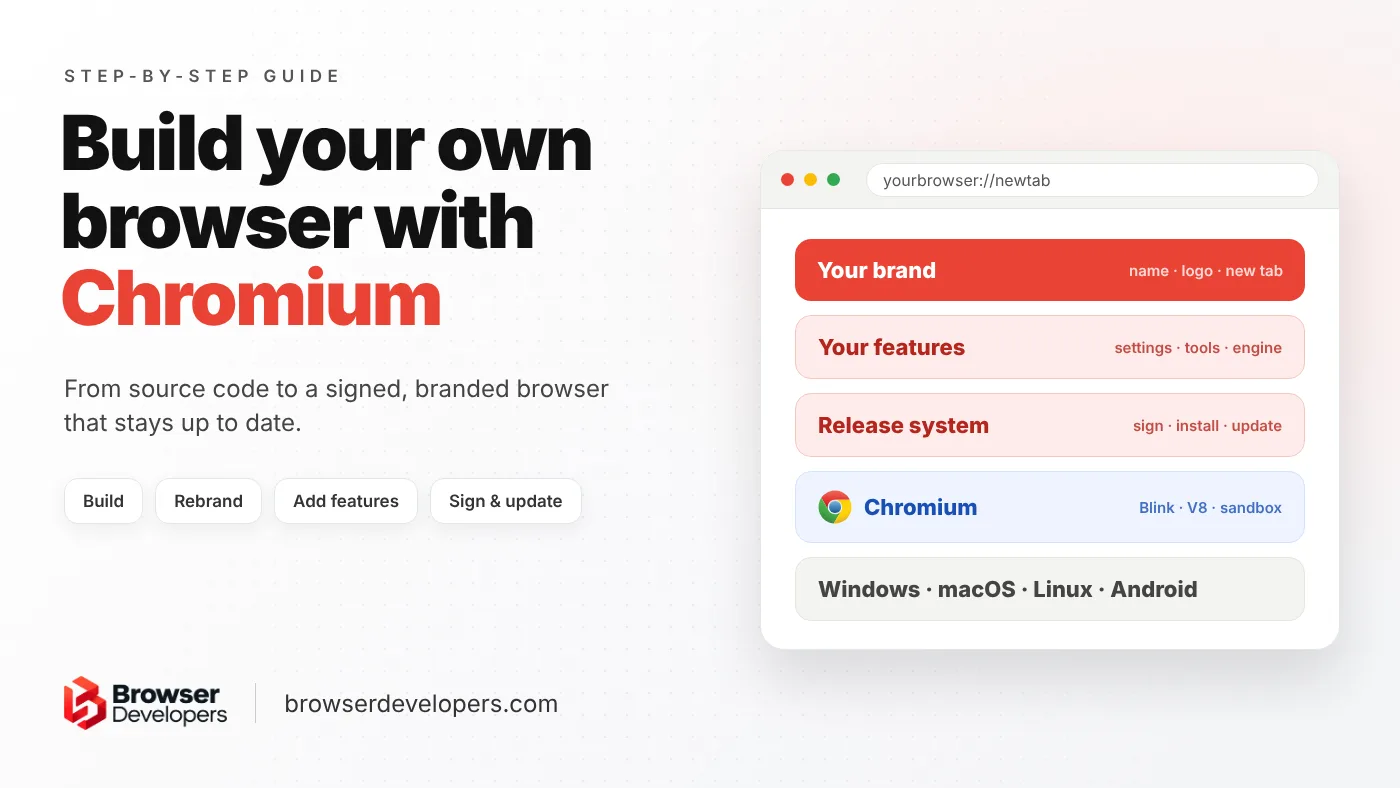
Mostly upstream Chromium: the Blink engine, the V8 JavaScript engine, networking and the security sandbox. Your product is a thin layer on top: your brand, features and default settings, a set of patches, and a release system for signing, installers and updates.
Think of Chromium like a car chassis: the engine, wheels and safety systems are done for you, and you build the body and the interior. Most of the code stays Google’s. Your work is a thin, carefully kept layer on top.
Your browser, layer by layer
Your brand and features
Name, logo, new tab page, built-in tools, default settings and policies.
Release system
Code signing, installers, auto-update server and crash reporting.
Your patch series
Your changes to Chromium, kept as small, ordered patches so upgrades stay manageable.
Chromium
Blink rendering engine, V8 JavaScript engine, networking, security sandbox and browser UI.
Operating system
Windows, macOS, Linux or Android.
- Your product
- Our engineering
- Upstream: third-party code we build on
- Platforms and release
How do you build your own browser with Chromium, step by step?
Set up a strong build machine, download Chromium with depot_tools and make one clean build. Then rebrand it, add your features, sign it, make installers and set up auto-update. After launch, rebase it on every new Chromium release.
Set up a build machine
A 64-bit machine with lots of RAM, a fast SSD and 100 GB or more free.
Get the code and build it
Install depot_tools, fetch Chromium and make one clean build.
Rebrand it
Change the name, logo, icons and app IDs.
Add your features
Settings, policies, built-in tools, and engine changes if needed.
Ship it
Sign it, build installers and set up auto-update.
Keep it current
Rebase on new Chromium releases and ship security fixes fast.
Step 1: What build machine do you need?
Chromium is one of the biggest open-source projects there is, and its build needs a strong machine. The official Chromium build docs for Linux, Windows and macOS ask for:
- A 64-bit (x86-64) machine with at least 8 GB of RAM. More than 16 GB is highly recommended.
- At least 100 GB of free disk space. On Windows it must be an NTFS drive.
- Linux: Ubuntu is the best-supported choice; Google’s build machines run Ubuntu 22.04.
- Windows: Windows 10 or newer, Visual Studio 2022 and the Windows 11 SDK.
- macOS: an Intel or Apple Silicon Mac with Xcode, on an APFS volume.
Build where your users are. You build the Windows version on Windows, the Mac version on a Mac, and so on. Most teams start on Linux because it is the simplest setup.
Step 2: How do you get the source code and make the first build?
Google’s helper tools, called depot_tools, download the code and drive the build. On Linux, the official steps look like this:
# 1. Install Google's build helper tools
git clone https://chromium.googlesource.com/chromium/tools/depot_tools.git
export PATH="${HOME}/depot_tools:$PATH"

# 2. Download Chromium (expect 30 minutes to many hours)
mkdir ~/chromium && cd ~/chromium
fetch --nohooks --no-history chromium
cd src

# 3. Install system packages and extra binaries
./build/install-build-deps.sh
gclient runhooks

# 4. Configure and build
gn gen out/Default
autoninja -C out/Default chrome

# 5. Run your build
out/Default/chrome
--no-history skips the full Git history to save time and space. gn gen creates a build folder; by default it is a debug build, which is fine for development. autoninja runs the build with the right settings for your machine.
Expect the first full build to take hours on a normal machine. It gets much faster after that, because only changed files are rebuilt. For release builds, set is_official_build = true in out/Default/args.gn: that gives a smaller, faster browser, but it takes longer to build.
Do not change anything yet. Get one clean build running first. If something breaks later, you will know it was your change, not your setup.
Step 3: How do you rebrand Chromium with your own name and logo?
Out of the box, your build is called “Chromium”. The basic product names live in one small file, chrome/app/theme/chromium/BRANDING:
COMPANY_FULLNAME=The Chromium Authors
PRODUCT_FULLNAME=Chromium
PRODUCT_SHORTNAME=Chromium
PRODUCT_INSTALLER_FULLNAME=Chromium Installer
MAC_BUNDLE_ID=org.chromium.Chromium
A full rebrand goes much further than this file. The usual list is:
- The product name in this file and in the user-facing strings (
chrome/app/chromium_strings.grd). - Icons and logos in every size for each platform, in
chrome/app/theme/chromium/. - The macOS bundle ID and the Windows app IDs, so your browser installs beside Chrome instead of clashing with it.
- Your own profile folder name, so your browser keeps its own settings and history.
- The new tab page, start page, default search engine and any links that point to Google.
Keep every change in a small, named patch rather than editing files all over the tree. You will reapply these patches on every Chromium upgrade, so the fewer files you touch, the cheaper each upgrade is.
For the full list, with the Windows IDs, profile folders, updater servers and user agent, see our white-label browser guide: how to rebrand Chromium.
Step 4: How do you add your own features?
Features fall into three levels, from cheapest to most expensive to maintain:
- Settings and policies. Default search, home page, privacy settings and blocked sites can often be set through Chromium’s built-in policies with little or no code.
- Built-in extensions and UI. An ad blocker, wallet, AI sidebar or company toolbar can often ship as an extension bundled with the browser. This is much easier to upgrade than C++ changes.
- Engine changes. Changes to networking, rendering or privacy behaviour, such as anti-fingerprinting, need C++ work inside Chromium. They are powerful, but they are where upgrades break most often.
A good rule: build each feature at the lowest level that works. Push it down into the engine only when nothing above it can do the job.
Step 5: How do you sign, install and auto-update your browser?
This is the step that turns a build into a product, and the one that takes teams by surprise. You need:
- Code signing. An Authenticode certificate on Windows. A Developer ID certificate and Apple notarization on macOS. Without these, operating systems warn users or block your browser.
- Installers for every platform you support, including silent installs for companies.
- Auto-update. Plain Chromium has no updater set up for you. The open-source Chromium Updater, which is based on Google’s Omaha protocol, can be integrated with your own update server. For example, we built the Total Security Browser with its own Omaha-based auto-updater.
- Crash reporting, so you see problems in the field before users report them.
Step 6: How do you keep your browser secure after launch?
This is the step that decides if your browser survives. Chrome now ships a new major version every two weeks, with security fixes in between, all announced on the Chrome Releases blog. Every one of those fixes is public, so a browser that falls behind is a known target. You need a plan to rebase your patches onto new Chromium releases, test, and ship, again and again. Our Chromium fork maintenance playbook explains how teams do this, and Chrome’s two-week release cycle explains how to pick your pace.
What problems catch first-time Chromium browser builders?
The usual surprises are that Google sign-in and Chrome sync are restricted, licensed video codecs and Widevine DRM are not included, extensions need testing because your browser is not Chrome, and iPhone browsers must use WebKit in most countries.
- Google sign-in and sync. The Chromium API keys page says signing in to Chromium is restricted, and many Google APIs used by Chrome are not meant for other products. Plan your own sync, or leave it out.
- Video codecs. Plain Chromium builds leave out licensed codecs such as H.264 and AAC. You can turn them on with the
proprietary_codecsandffmpeg_brandingbuild flags described in the Chromium audio and video docs, but licensing them is your job. - Netflix-style DRM. Widevine, which many streaming sites need, is not part of the open source. Shipping it in your browser needs approval from Google’s Widevine team, so start that early.
- The Chrome Web Store. Users can install extensions from it, but your browser is not Chrome, so test the extensions your users rely on.
- iPhone and iPad. Under App Store guideline 2.5.6, iOS browsers must use Apple’s WebKit outside the EU and Japan, so a Chromium engine browser is not possible there.
What mistakes should you avoid when building a Chromium browser?
The costly mistakes are changing files all over the source instead of keeping small patches, building in C++ what a policy or extension could do, launching without signing and auto-update, and letting the browser fall behind Chromium releases.
These come up again and again in browser projects, and each one gets more expensive the longer it is left:
- No clean baseline build. Changes were made before a stock build ever worked, so nobody can tell which errors come from the setup and which from the changes.
- Edits spread across the whole source tree. Every Chromium upgrade then turns into a long merge. Keep changes in small, named, documented patches instead.
- Engine changes for things a policy or extension could do. Each C++ change is upgrade work forever. Push features down into the engine only when nothing above it works.
- Launching without auto-update. A browser that cannot update itself cannot get security fixes to its users. Build the update path before the first public release.
- Skipping upgrades “for now”. Every missed Chromium release makes the next rebase bigger and leaves known security holes open in the meantime.
How long does it take, and what does it cost, to build a Chromium browser?
A rebranded browser with light changes usually takes 6–10 weeks to ship, a custom browser with its own features 3–6 months, and deep engine work 6–12 months or more. After launch, keeping it updated and secure is a yearly cost.
Most of that time goes into signing, installers, auto-update and testing, not the first build. For the details, read how long it takes to build a custom browser and what drives the cost of a custom Chromium browser.
Should you build your browser in-house or hire a team?
Build in-house if you have C++ engineers who can own the browser for years. Hire specialists if browsers are not your core skill, you need to launch fast, or you want someone else to own the Chromium upgrades.
Build it in-house if you already have C++ engineers who know large codebases, and you can give the browser a permanent team. Hire specialists if the browser is not your core skill, if you need to launch in weeks rather than quarters, or if you need someone to own the upgrade work for years. Many teams do both: they build features in-house and hand the Chromium upgrades, builds and releases to a specialist.
We have built custom Chromium browsers for security companies, privacy products, Web3 projects and families, such as Kahf, Max and ORBITi.
Final takeaway
Building your own browser with Chromium is very doable: one strong machine and a day of setup gets you a working build. Shipping it, with your brand, signed installers and auto-update, takes weeks to months. Keeping it secure on Chrome’s two-week release cycle never ends. Plan for that last part first, and the rest gets easier.
Frequently asked questions
Can I build my own browser with Chromium for free?
The Chromium source code is open source and free to use, and the build tools are free. The real costs are engineering time, build machines, code-signing certificates, an update server, and keeping the browser current with every Chromium release after launch.
Can I use Google sign-in and Chrome sync in my own Chromium browser?
Not as a normal product feature. The Chromium API keys page says the OAuth token needed for signing in to Chromium is restricted, and many Google APIs used by Chrome are not meant for derived products. Plan your own account and sync system, or leave sync out.
Can I make an iPhone browser with Chromium?
Not with the Chromium engine in most of the world. Outside the EU and Japan, iOS browsers must use Apple’s WebKit. Chrome for iOS itself uses WebKit there. In the EU and Japan, Apple offers entitlements for other engines, with extra requirements.
Do I need to fork Chromium, or can I just change settings?
If you only need defaults, policies and a few extensions, you may not need a fork at all: managed Chrome or an extension can be enough. You need a Chromium fork when you change the name and logo, build features into the browser itself, or change engine behaviour.
Is it legal to make a browser based on Chromium?
Yes. Chromium is open source, and many browsers, such as Brave, Opera, Vivaldi and Microsoft Edge, are built on it. You must follow the licences of Chromium and its third-party code, use your own name and logo instead of Google’s trademarks, and license codecs and DRM yourself where needed.
Planning your own Chromium browser?
We build custom Chromium browsers end to end: branding, features, engine changes, signed installers, auto-update, and the long-term upgrades that keep them secure. See our custom Chromium browser development service.