
Chromium engineering
White-label browser guide: how to rebrand Chromium
By Usman Khan, Lead Chromium Developer
Technically reviewed by Ahmed Raza, Head of Browser Development
Published 11 min read
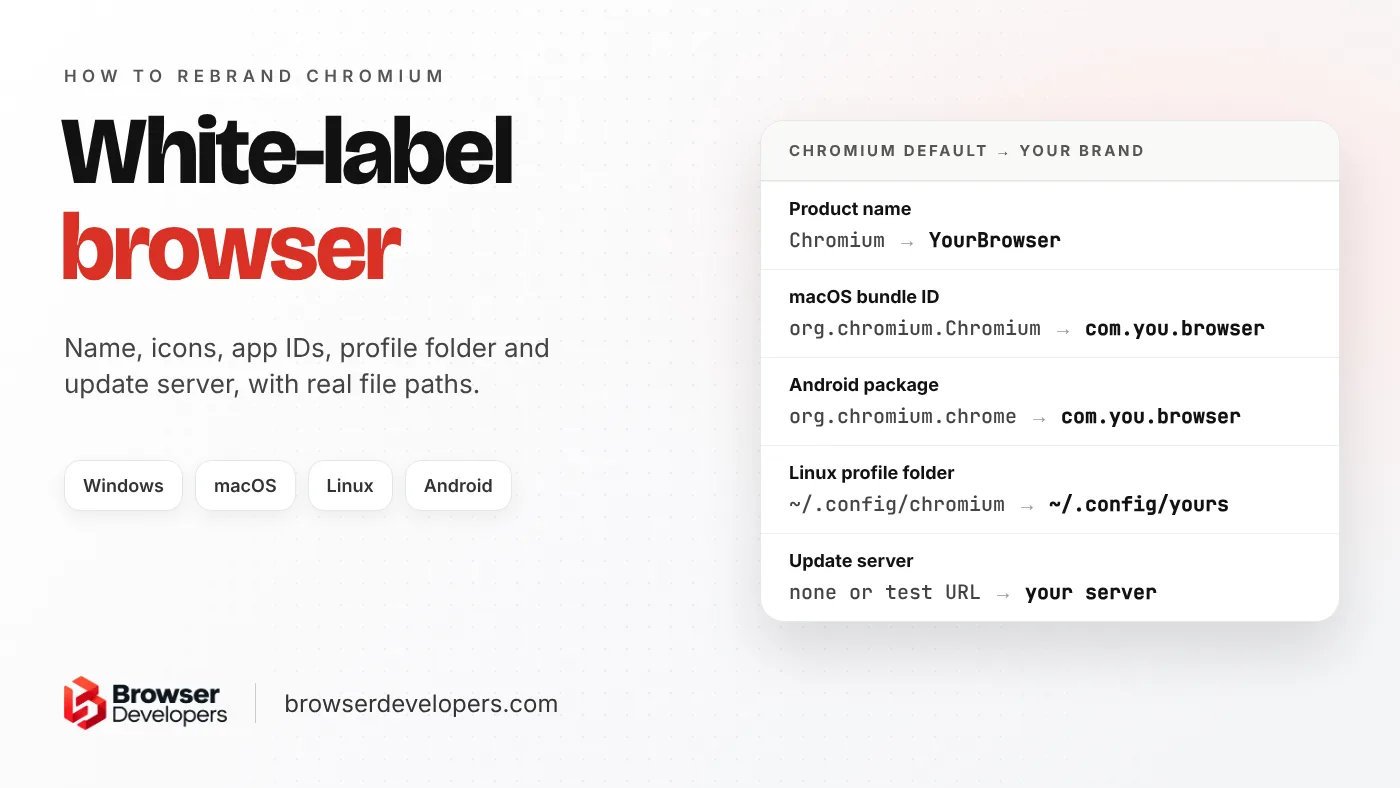
Most rebranding guides stop at the logo. That gets you a browser that says your name in the title bar, still installs on top of Chromium on Windows, still stores its profile in a folder called “chromium”, and has no auto-update at all, or, if you build Chromium’s updater as it ships, points it at Google’s test servers. This guide covers the whole list, with the real file paths in today’s Chromium source. It is one step of our guide to building your own browser with Chromium.
What is a white-label browser?
A white-label browser is a full web browser sold or shipped under your own name and logo, while the engine underneath comes from someone else, almost always Chromium. Users see your brand from the installer to the About page; the engine stays upstream code.
Brave, Opera, Vivaldi and Microsoft Edge are all built on Chromium, but each one has its own name, icons, settings and update system. A white-label browser is the same idea for a company that wants a browser under its own brand: a security company, an ISP, a school network or a Web3 project. The engine work is already done upstream. The branding, the defaults and the release system are yours.
Should you buy a white-label browser or rebrand Chromium yourself?
Use a vendor’s white-label product if you only need your logo and settings on an existing browser and can accept their roadmap. Rebrand your own Chromium build if you want to own the source code, your update server and the features you add later.
| Option | What you control | Good fit when | Watch out for |
|---|---|---|---|
| Managed Chrome or Edge with policies | Settings, home page, extensions. Not the name or logo. | Your own staff use it and the brand does not matter | Users still see Chrome or Edge |
| A vendor’s white-label browser | Logo, name and settings, as far as the vendor allows | You need a branded browser fast and need few changes | Their roadmap and update pace; ask who owns the source |
| Your own rebranded Chromium build | Everything: brand, features, update server and source | The browser is your product, or you will add features later | You own the upgrades after launch |
The rest of this guide is about the third option. If you are not sure you need a full browser at all, the pillar guide compares it with extensions and embedded browsers.
Which files do you change to rebrand Chromium?
Start with chrome/app/theme/chromium/BRANDING and chrome/app/chromium_strings.grd for the name, then the icons in chrome/app/theme/chromium/. After that come the per-platform app IDs, the profile folder, the updater’s branding file and the user agent.
Here is where each piece of the brand lives in Chromium’s source today. Every path links to the file on Chromium’s official source browser.
| What users see | Where it is set | Chromium default |
|---|---|---|
| Product and company name | chrome/app/theme/chromium/BRANDING | Chromium, The Chromium Authors |
| Names inside the browser UI | chrome/app/chromium_strings.grd and its .xtb translations | Chromium |
| Logo and icons | chrome/app/theme/chromium/ (win, mac, linux folders) | The blue Chromium logo |
| Windows app IDs and GUIDs | chrome/install_static/chromium_install_modes.h | Chromium, ChromiumHTM |
| macOS bundle ID | MAC_BUNDLE_ID in the BRANDING file | org.chromium.Chromium |
| Linux package and menu name | chrome/installer/linux/common/chromium-browser.info | chromium-browser, Chromium Web Browser |
| Android package name | chrome_public_manifest_package in chrome/android/chrome_public_apk_tmpl.gni | org.chromium.chrome |
| Profile folder on Linux and macOS | chrome/common/chrome_paths_linux.cc and chrome_paths_mac.mm | ~/.config/chromium, Application Support/Chromium |
| Updater name, IDs and servers | chrome/updater/branding.gni | Chromium Updater, Google test URLs |
Name and strings
BRANDING file, string files and every translation.
Icons
Each size and format for Windows, macOS, Linux and Android.
IDs and folders
App IDs, bundle IDs, new GUIDs and your own profile folder.
Servers
Your update and crash servers instead of Chromium’s defaults.
User agent
Keep the Chrome token, add your own brand.
Step 1: How do you change Chromium’s name?
The short product and company names come from one small file, chrome/app/theme/chromium/BRANDING. On main today it holds ten lines, including these:
COMPANY_FULLNAME=The Chromium Authors
PRODUCT_FULLNAME=Chromium
PRODUCT_SHORTNAME=Chromium
PRODUCT_INSTALLER_FULLNAME=Chromium Installer
MAC_BUNDLE_ID=org.chromium.Chromium
MAC_CREATOR_CODE=Cr24
MAC_TEAM_ID=
The names users read inside the browser, in menus, settings, dialogs and the About page, come from chrome/app/chromium_strings.grd. It holds about 900 messages on main today, starting with IDS_PRODUCT_NAME and IDS_SHORT_PRODUCT_NAME. More product strings live in chrome/app/settings_chromium_strings.grdp and components/components_chromium_strings.grd. Each translatable message has translations in matching .xtb files, one per language (81 for the main string file on main today). Change those too, or users in other languages will still see “Chromium”.
Do not run a find-and-replace on the word “Chromium”. It appears in code names, file paths, build targets and the copyright line at the top of nearly every file. Change product names, not code.
Step 2: How do you replace the logo and icons?
Chromium keeps its logo files in chrome/app/theme/chromium/. You need your own version of each one, at the same file name and size:
- Shared:
product_logo_16.pngup toproduct_logo_256.png, a monochrome 22 px version, andproduct_logo.svg. - Windows:
win/chromium.ico, plus separate icons for documents, PDFs, incognito windows and other shortcuts (for exampleisolated.ico), and Start menu tiles. - macOS:
mac/app.icnsand the asset catalog next to it. - Linux: PNGs from 24 px to 256 px and one 32 px XPM.
- Outside that folder: more product logos sit in
chrome/app/theme/default_100_percent/chromium/,default_200_percent/chromium/andcomponents/resources/default_100_percent/chromium/, as Chromium’s branded builds doc shows.
Replace the files in place rather than deleting and adding them, so the build keeps finding every name it expects. Then check the small sizes by eye: a detailed logo that looks fine at 256 px often turns to mush at 16 px in a tab or the taskbar.
Step 3: How do you change the app IDs so your browser installs beside other Chromium browsers?
This is the step most guides skip, and the one that causes the strangest bugs. The operating system tells apps apart by their IDs, not their names. If you keep Chromium’s IDs, your browser and any other Chromium build on the same machine fight over shortcuts, file types and default-browser settings.
- Windows:
chromium_install_modes.hsets the install folder name, the app ID, the ProgIDs for HTML and PDF files (ChromiumHTM,ChromiumPDF), an Active Setup GUID, and COM class IDs for notifications, elevation and tracing. Generate new GUIDs for every one of them. - macOS: set
MAC_BUNDLE_IDin the BRANDING file to a reverse-domain ID you own, such ascom.yourcompany.browser. Your signing team ID goes inMAC_TEAM_ID. - Linux:
chromium-browser.infosets the package name, install folder (/opt/chromium.org/chromium), menu name, description and app ID. - Android: the package name is the GN build argument
chrome_public_manifest_package, set toorg.chromium.chromeinchrome_public_apk_tmpl.gni. You can set it in yourargs.gnwithout a patch. Pick your own before your first store release: Android’s app ID docs say Google Play treats an app with a changed ID as a completely different app.
Step 4: How do you give your browser its own profile folder?
The profile folder holds bookmarks, history, passwords and settings. If it keeps Chromium’s name, your browser can open another Chromium build’s profile, or the other way round. Chromium’s user data directory docs list the defaults:
- Windows:
%LOCALAPPDATA%\Chromium\User Data, built from the company and product folder names in the Windows install modes file. - macOS:
~/Library/Application Support/Chromium. The folder name is set inchrome_paths_mac.mmand can be changed with theCrProductDirNamekey in the app’s Info.plist. - Linux:
~/.config/chromium, set as a plain string inchrome_paths_linux.cc.
Set these before your first public build. Moving users’ profiles to a new folder after launch is a migration project.
Step 5: How do you point updates and crash reports at your own servers?
Here is the gotcha that surprises teams most. If you build Chromium’s open-source updater without changing its branding, it is set up for testing, not for your users. Its branding file, chrome/updater/branding.gni, has these values for non-Google builds on main today:
browser_name = "Chromium"
crash_upload_url = "https://clients2.google.com/cr/staging_report"
help_center_url = "http://support.google.com/installer/"
mac_team_identifier = "PLACEHOLDER"
update_check_url = "https://omaha-qa.sandbox.google.com/service/update2/json"
updater_event_logging_url = "https://play.googleapis.com/staging/log/"
The update, crash and logging URLs are Google’s test and staging servers, and the help link points at Google’s support site. Replace them with your own update server, crash server and help page, and give the updater and your browser their own app IDs and Windows COM IDs from the same file. A plain Chromium build has no updater set up at all, so this step only applies once you add one, which every product needs. The Chromium Updater manual explains how the updater works. For the browser itself, Chromium’s Chrome vs Chromium page notes that plain Chromium on Linux never reports crashes, so you need your own crash server if you want to see crashes in the field.
Step 6: Should you change the user agent?
Add your brand, but keep the Chrome/ version token. Many websites check for it, and removing it breaks sites. Microsoft Edge shows the pattern: its user agent guidance gives a string that ends in Chrome/120.0.0.0 Safari/537.36 Edg/120.0.0.0, and lists “Microsoft Edge” as its own brand in the Sec-CH-UA Client Hints header next to “Chromium”.
A plain Chromium build sends only “Chromium” (plus a random placeholder brand) in that header. The code in user_agent_utils.cc adds a product brand only for builds that are not Chromium-branded, so adding yours is a small, deliberate patch.
Can you use the Chrome or Google name and logo in your browser?
No. Google keeps the Chrome logo and related assets out of the open-source code because they are a trademark. Your browser needs its own name and logo, and signing in to Google and Chrome sync are restricted for browsers built from Chromium.
- Chrome branding. Chromium’s branded builds doc says the Google Chrome logo and related assets are a trademark that Google does not release under Chromium’s open-source license. Do not use the Chrome name or logo, or anything that looks like them.
- Google services. The Chromium API keys page says sign-in to Chromium is restricted and many Google APIs used by Chrome are not meant for other products. Plan your own sync, or leave it out.
- License notices stay. Rebranding changes the product name, not the copyright of the code underneath. Keep the license files and the
chrome://creditspage that lists Chromium’s third-party code.
What is the full white-label browser rebrand checklist?
Name and strings, translations, icons for every platform, app and bundle IDs, new Windows GUIDs, the profile folder, the installer and package names, your update and crash servers, the user agent, links to Google services, and the legal notices you must keep.
- Product and company names in the BRANDING file.
- User-facing strings in
chromium_strings.grd, plus every.xtbtranslation. - Icons in every size and format, checked by eye at 16 px.
- Windows app ID, ProgIDs, Active Setup GUID and COM class IDs, all new.
- macOS bundle ID and team ID; Linux package name, install folder and app ID; Android package name.
- Your own profile folder on every platform.
- Installer names, shortcuts and Start menu or dock names.
- Update server, crash server, help link, app IDs and COM IDs in the updater branding.
- The user agent:
Chrome/token kept, your brand added to Client Hints. - New tab page, default search engine and links that still point to Google.
- License files and
chrome://creditskept as they are. - Code signing on Windows and macOS under your company name.
What goes wrong when teams rebrand Chromium?
The common problems are a blind find-and-replace of “Chromium”, reusing Chromium’s Windows IDs so installs clash, forgetting translated strings, shipping Chromium’s updater with Google’s test servers still set, and removing the Chrome token from the user agent.
- Find-and-replace on “Chromium”. It breaks code names and license text. Change product strings only.
- Reusing Chromium’s Windows IDs. Your browser and another Chromium build then fight over file types, shortcuts and notifications.
- English-only strings. The
.xtbtranslations still say “Chromium”, and users in other languages see it. - Default updater settings. Shipping Chromium’s updater with the test URLs from its branding file still set.
- Editing branding all over the tree. Every Chromium upgrade then turns into a long merge. On the Chromium developers list, a Vivaldi engineer said that at present the only way is editing or overriding GN targets and files, so keep those changes in one small, named patch.
That last point is how we work on real projects. On Egon Browser, a Brave-based browser we built for a private client, the branding sits apart from the engine changes, so either can be updated without touching the other.
How long does it take to build a white-label browser?
A browser with a light rebrand and new defaults usually takes 6–10 weeks to reach a first release. In our experience, most of that time goes into signed installers, the update server and testing on each platform, not the name and logo themselves.
The name and logo are the quick part. In our experience, signing on Windows and macOS, installers, your own update server and testing on each platform take most of the schedule. For the full picture, read how long it takes to build a custom browser and what drives the cost of a custom Chromium browser. After launch, your rebranded browser needs every Chromium security release, which our fork maintenance playbook covers.
Final takeaway
Rebranding Chromium is more than a logo swap. The name and icons are the quick part. The IDs, profile folder, update server and user agent are what make it a real product that installs cleanly beside other browsers. Keep all of it in one small patch, and every future Chromium upgrade stays cheap.
Frequently asked questions
Do I have to rebuild Chromium to change the name or logo?
Yes. The name, icons and app IDs are compiled into the browser and its installers, so every branding change needs a new build. That is one more reason to finish the branding early and keep it in its own patch.
Can I rebrand Chromium on Android?
Yes. Besides the name and icons, you change the package name. Chromium’s Android build uses org.chromium.chrome by default, and the Play Store needs a package name that no other app uses, so pick your own before your first release.
Can I rebrand Brave instead of plain Chromium?
Yes. A Brave-based browser has two layers of branding to replace: Brave’s and Chromium’s under it. It also has two upstreams to follow, so every update means checking that your branding still applies to both.
Does a white-label browser get Chrome extensions?
Users can usually install extensions from the Chrome Web Store, because the browser runs the same extension system as Chrome. Your browser is not Chrome, though, so test the extensions your users depend on before launch.
Want your own branded browser?
We build white-label browsers on Chromium: your name and icons on every platform, your defaults, signed installers, your own update server, and the Chromium upgrades after launch. See our white-label browser development service.