
Extensions
Chrome Web Store rejected your extension? Reasons and fixes
By Fawad Raza, Extension Security Tester
Technically reviewed by Imran Shah, Cross-Browser Extension Lead
Published 8 min read
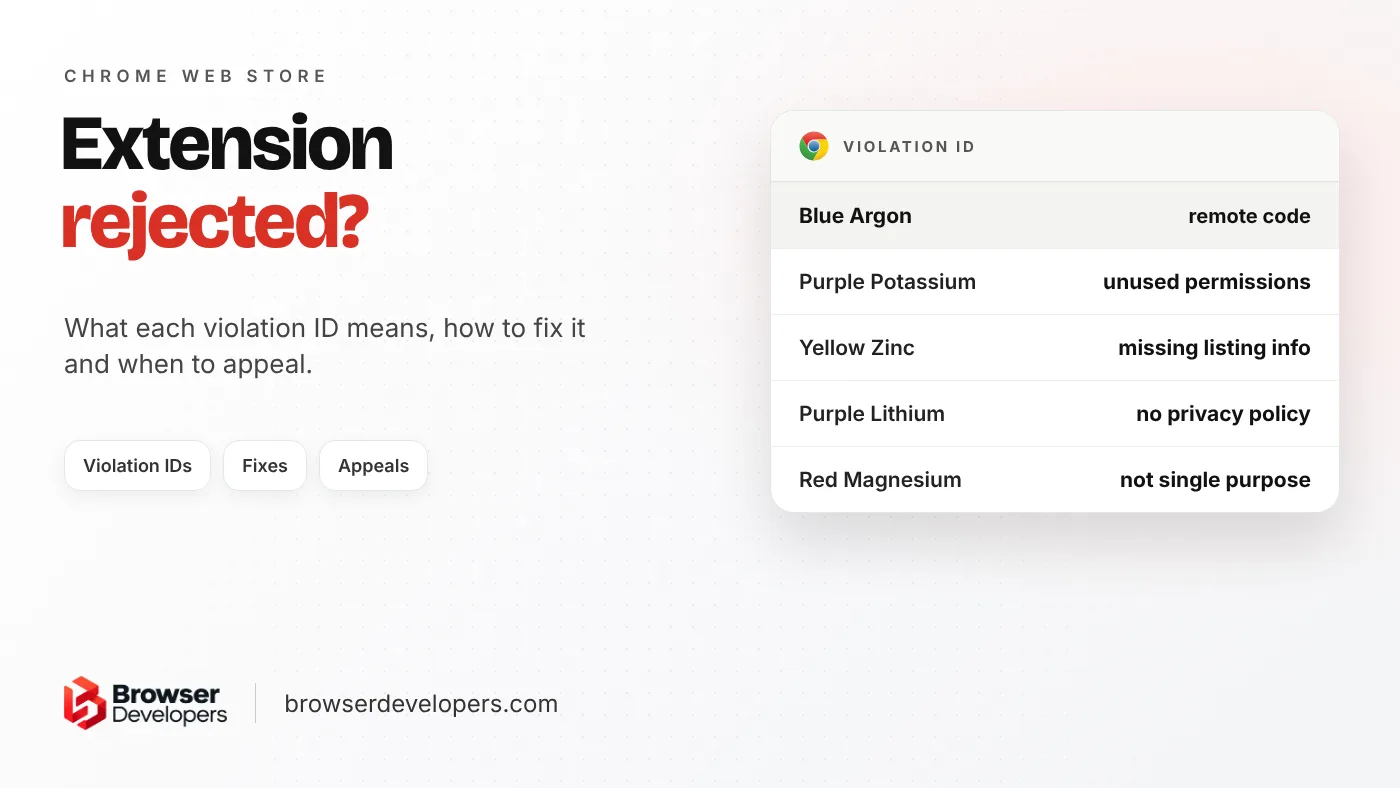
Our Chrome Web Store publishing guide covers the submission itself. This guide is for after a rejection: every violation ID Chrome lists, the fixes for the common ones, when to appeal, and what happens to an extension that is already live.
Why was my Chrome extension rejected?
Because a reviewer found a policy violation in that submission. Common ones include code loaded from a server, permissions the extension does not use, a listing that is incomplete or misleading, missing privacy disclosures, more than one purpose, and an extension that does not work as described.
Chrome’s review process page says a submission that violates policy, but is not an egregious case, is rejected. The publisher email gets a message that names the policy and explains how to appeal. The live listing, the published version and your users are not affected.
How do you read a Chrome Web Store rejection email?
Find the two-word violation ID, such as Purple Potassium, and the policy it names. Look the ID up on Chrome’s troubleshooting page, which lists the common causes and the fix for each. The email also tells you how to appeal.
- The ID. Chrome’s troubleshooting page says each violation has a human-readable ID made of two words, a colour and an element. For example, Yellow Magnesium means the extension does not behave as expected.
- The policy. The email names the policy area, such as Use of Permissions or Single Purpose. Read that policy, not only the summary.
- The details. If the email does not say which permission or feature is the problem, Chrome says to contact developer support and ask for more information before you guess.
What do the Chrome Web Store violation codes mean?
Each ID is a colour and an element that maps to one policy area, such as Blue Argon for Manifest V3 code rules or Yellow Zinc for missing listing details. Look up the exact ID, because each one has its own causes and fixes.
These are all the IDs on Chrome’s troubleshooting page, grouped by what they are about:
| Policy area | IDs | What it usually means |
|---|---|---|
| Manifest V3 requirements | Blue Argon | Code loaded from a server instead of the package |
| Functionality not working | Yellow Magnesium | Broken package, missing files or a feature that fails |
| Excessive permissions | Purple Potassium | Permissions the extension does not need |
| Missing or insufficient metadata | Yellow Zinc | Missing, unclear or misleading icon, title, screenshots or description |
| Keyword stuffing | Yellow Argon | Excessive or irrelevant keywords, usually in the description |
| Redirection | Yellow Lithium | Its only job is to open another app, page or extension |
| Spam | Yellow Nickel | Duplicate extensions, manipulated ratings or spammy notifications |
| Minimum functionality | Yellow Potassium | No real function, or features that only link elsewhere |
| Deceptive behavior | Red Nickel, Red Potassium, Red Silicon | It does something different from what the listing says, or poses as another company or extension |
| Single purpose | Red Magnesium, Red Copper, Red Lithium, Red Argon | More than one unrelated purpose |
| Deceptive installation | Red Zinc | Misleading ads, pages or buttons that lead to the install |
| Obfuscation | Red Titanium | Code hidden on purpose (minified code is allowed) |
| User data: disclosure | Purple Lithium | Missing, broken or incomplete privacy policy link |
| User data: prominent disclosure | Purple Nickel | Collecting data without telling users and getting consent first |
| User data: secure transmission | Purple Copper | Sending user data insecurely, for example over HTTP |
| User data: other requirements | Purple Magnesium | Collecting browsing activity it does not need, or exposing data |
| Overrides API | Blue Nickel, Blue Potassium | Changing the New Tab page or omnibox search without the Overrides API |
| Prohibited products | Blue Zinc, Blue Copper, Blue Lithium, Blue Magnesium | Bypassing paywalls or logins, or downloading YouTube or copyrighted content |
| Enforcement circumvention | Blue Titanium | Trying to evade review or an earlier enforcement |
| Cryptocurrency mining | Grey Silicon | Mining in the extension |
| Affiliate ads | Grey Titanium | Affiliate links or codes without disclosure and a user action |
| Content policies | Grey Zinc, Grey Copper, Grey Lithium, Grey Magnesium, Grey Nickel, Grey Potassium | Illegal, gambling, sexually explicit, hateful or violent content, or mature content not marked Mature |
The “what it usually means” column is our summary. Always read the section for your exact ID, because the common causes and fixes are listed there.
How do you fix the most common rejections?
Fix exactly what the ID names, in the package you upload: bundle all code, remove unused permissions, complete the listing honestly, add the privacy disclosures, narrow the extension to one purpose, and test the packed build. Then raise the version and submit again.
Blue Argon: how do you remove remote code?
Manifest V3 requires all of the extension’s logic to be in the package. Bundle every script you load, including libraries from a CDN. Data and settings from your server are fine, as long as they contain no logic. Code, or commands your extension runs, are not. Our Manifest V3 extension guide shows how to structure a bundled extension.
Purple Potassium: how do you prove a permission is needed?
Remove every permission the extension does not use, including in optional_permissions and host_permissions, and request only the narrowest permission each feature needs. If the reviewer says a permission is unused and you know it is used, Chrome says to appeal with a detailed explanation of why it is needed and how it is used.
Yellow Magnesium: why does the reviewer say it does not work?
Chrome lists packaging errors, missing files, wrong paths and case-sensitive file names, and features that failed because a server was down during review. Test the exact zip you upload, not your development folder. If users must sign in or pay, add a login in the dashboard’s Test instructions tab so the reviewer can reach every feature.
Yellow Zinc and Yellow Argon: what is wrong with the listing?
Fill in the icon, title, screenshots and description, and make them match what the extension does. Remove lists of keywords and unrelated brand names from the description.
Purple Lithium and Purple Nickel: what privacy disclosures are missing?
Add a working privacy policy link on the Privacy tab, and make it cover how data is collected, used, handled and shared. If the extension collects data users would not expect, tell them clearly and get their consent before you collect it.
Red Magnesium and the single-purpose IDs: how do you narrow the extension?
The store requires a single purpose that is narrow and easy to understand. Remove features that do not serve it, or split them into a separate extension.
Red Titanium: what counts as obfuscation?
Code made hard to read on purpose, such as Base64 or character-encoded strings. Chrome’s policy allows minification: removing whitespace and comments, shortening names and joining files. The rule also covers code the extension fetches from elsewhere.
Should you appeal a rejection or fix it and resubmit?
Fix and resubmit when the reviewer is right. Appeal from the item’s page in the dashboard only when you can explain why the decision is wrong, for example a permission the reviewer thought was unused. Ask developer support when the email is unclear.
- Fix and resubmit when the email describes a real problem. Raise the version number and submit through the normal process. Chrome’s review process page says reviews can take longer than normal after a rejection or warning.
- Appeal with the Appeal button on the item’s page in the developer dashboard when the decision is wrong. Explain exactly what the code does and why, in plain words. Chrome says all communication after an appeal takes place over email.
- Ask support through One Stop Support when the email does not say enough to act on.
Public forums are not a support channel. Chrome’s review process page says the team monitors them, but recommends its support form for concerns.
What is the difference between a rejection, a warning and a takedown?
A rejection stops a new submission and leaves the live version alone. A warning usually gives a published extension 7 to 30 days to fix a minor violation. A takedown removes it from the store, at once for a serious violation or when a warning runs out. Malware and extreme cases are removed without notice and can cost the account.
| Action | When | Store listing | Users |
|---|---|---|---|
| Rejection | A new submission violates policy | Unchanged | Not notified |
| Warning | A minor violation in a published item | Unchanged during the warning, usually 7 to 30 days | Not notified |
| Takedown | A moderate or worse violation, or an expired warning | Removed; the page returns 404 | After several weeks, Chrome disables it and tells them; they can turn it back on |
| Malware or extreme | Malware, evading review, repeated severe violations | Removed | Disabled and cannot be turned back on |
All of this comes from Chrome’s review process page. In most cases a takedown is not permanent: you can return the extension by submitting a version that fixes the violation and passes review. In the most severe cases, the developer account is permanently suspended.
How do you avoid a Chrome Web Store rejection next time?
Check the package against the policies before you submit: no remote code, no unused permissions, a complete and honest listing, matching privacy answers, one clear purpose, readable code, and test instructions for any login. Test the exact zip you upload.
- Every script is in the package. Nothing is loaded from a server or CDN.
- Every permission is used, and you have a one-line reason for each one.
- The listing has an icon, title, screenshots and a description that matches the extension.
- The privacy policy link works, and the Privacy tab answers match what the code does.
- The extension does one clear thing.
- The code is readable. Minified is fine; obfuscated is not.
- Test instructions and a login are in the dashboard if any feature needs one.
- You tested the exact zip you are uploading.
On extension projects we prepare narrow permissions with a written reason for each, and ship no remotely hosted code, because those remove two common causes of rejected or delayed reviews. If you are still on Manifest V2 code, start with our Manifest V2 to V3 checklist.
Final takeaway
A rejection is a specific, fixable message, not a verdict on your extension. Read the ID, fix exactly that in the package you upload, and save appeals for decisions you can show are wrong.
Frequently asked questions
Does a rejection affect the version of my extension that is already live?
Not directly. Chrome’s review process page says a rejected submission leaves the live listing and published version unchanged, and users are not notified. But a violation found in a new submission can trigger a review of the published version too.
What does “This extension violates the Chrome Web Store policy” mean?
It is what users see after an extension has been taken down and the violation is not fixed for several weeks. Chrome then disables the extension and tells the user it violates store policy. Users can choose to turn it back on.
What if my extension has been pending review for weeks?
Chrome says most reviews finish within a few days but can take up to a few weeks, and longer for extensions with broad host permissions. If it is still pending after three weeks, contact Chrome Web Store developer support.
Extension rejected again?
Send us the extension and the rejection email. We will review the permissions, the code and the running extension, cut what the features do not use, and help you fix the findings before you resubmit. See our extension security audit service.