
Extensions
How to publish a Chrome extension on the Chrome Web Store
By Zubair Hussain, Chrome Web Store Specialist
Technically reviewed by Bilal Ahmed, Lead Chrome Extension Developer
Published 9 min read
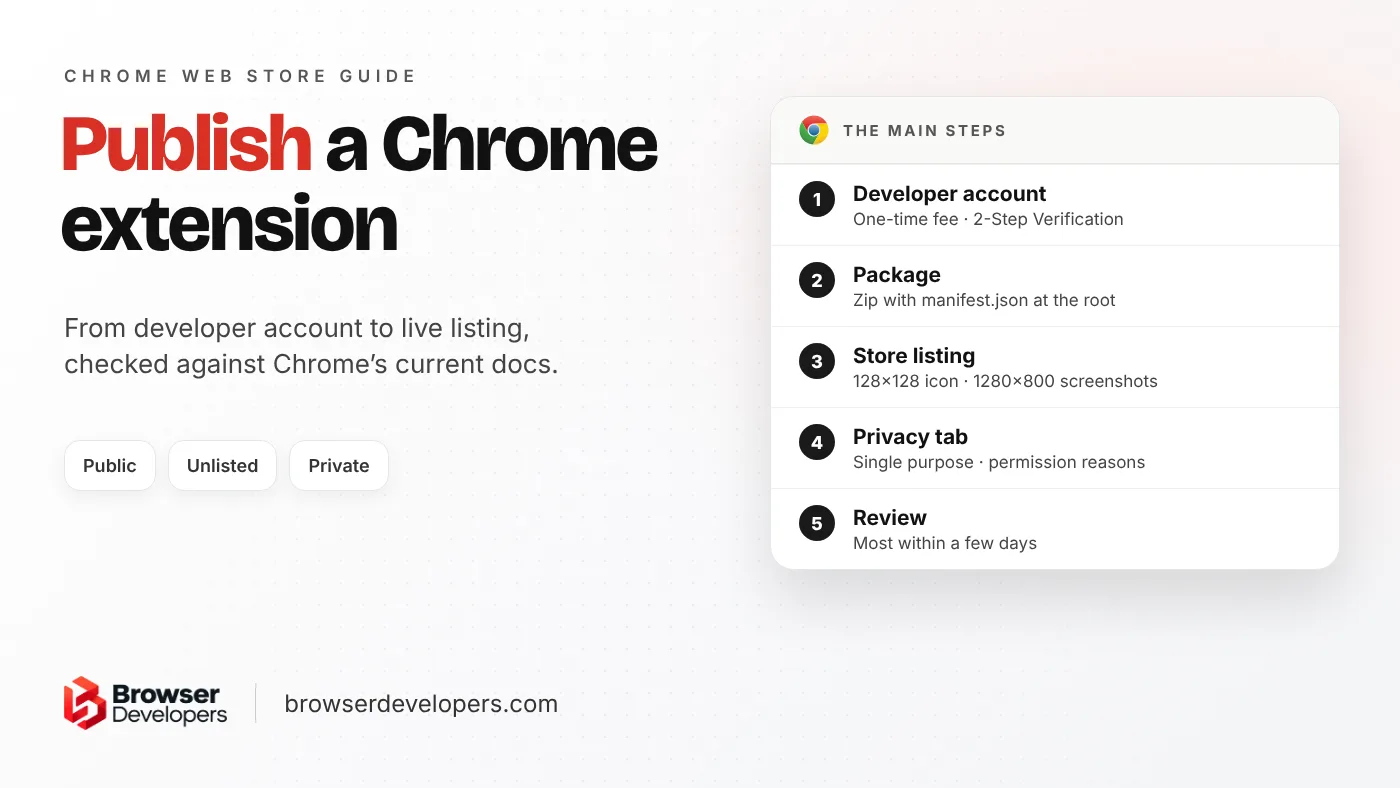
Many guides that rank for this query describe limits and screens that have since changed. This one follows Chrome’s current publishing docs, checked in November 2026, including the parts older guides skip: 2-Step Verification, the trader declaration, the two-extension limit for new publishers, deferred publishing and percentage rollouts. If you are still building the extension, start with our Manifest V3 extension guide.
How do you publish a Chrome extension, step by step?
Register a Chrome Web Store developer account, zip your extension with manifest.json at the root, upload it in the Developer Dashboard, fill in the Store listing, Privacy and Distribution tabs, then submit it for review. It goes live after review, or when you choose.
Register
Developer account, one-time fee and 2-Step Verification.
Package
Zip with manifest.json at the root and a new version number.
Upload and list
Upload the zip, then add the icon, screenshots and description.
Privacy
Single purpose, a reason for each permission, data use answers.
Distribution
Public, Unlisted or Private, and which countries.
Submit
Review, then publish automatically or when you choose.
Step 1: How do you create a Chrome Web Store developer account?
- Turn on 2-Step Verification for the Google account first. Chrome’s policy says it is required for all developer accounts before publishing or updating an extension.
- Pick the account email carefully. The registration page says you cannot change it after the account is created. Use a shared company address.
- Accept the developer agreement, then pay the one-time registration fee.
- Declare whether you are a trader. Under EU consumer rules, Chrome may ask you to self-declare trader or non-trader status. Under the EU definition the page quotes, you are a trader if you publish for purposes related to your business. A trader’s verified details, such as legal name and contact details, are shown to store users.
Step 2: How do you package a Chrome extension for upload?
Zip all the extension’s files. Chrome’s preparation guide says manifest.json must sit in the root of the zip, not inside a folder. Check these manifest fields before you zip:
name,version,iconsanddescription. The description is at most 132 characters.versionmust be higher than any version you uploaded before. Starting low, such as0.0.0.1, leaves room.manifest_version: 3. Chrome’s Manifest V2 timeline says the remaining Manifest V2 extensions were removed from the store on August 31, 2026.- No comments inside
manifest.json: they cause a “Cannot parse the manifest” error.
The name and the short description from manifest.json cannot be edited in the dashboard. To fix a typo there, you change the manifest, raise the version and upload again.
Step 3: How do you upload the extension and fill in the store listing?
In the Chrome Developer Dashboard, click Add new item and upload the zip. Chrome’s publishing guide allows packages up to 2 GB. If the manifest and zip are valid, you move on to the item’s tabs. The Store listing tab holds what users see: description, category, language, icon and screenshots.
Step 4: What goes in the Privacy tab?
Chrome’s privacy fields guide asks for five things:
- A single purpose that is narrow and easy to understand.
- A reason for every permission in your manifest. Remove any you do not use.
- Whether the extension runs remote code. Manifest V3 requires the extension’s logic to be in the package, so for most extensions the answer is no.
- Which kinds of user data it collects, and a certification that you follow the limited use policy.
- A link to your privacy policy.
Step 5: How do you choose who can see and install it?
In the Distribution tab you choose visibility and regions. You can publish to all regions or to chosen countries. The visibility options are compared in the private-publishing section below.
Step 6: How do you submit it and choose when it goes live?
If reviewers need to sign in, add a test account in the Test instructions tab. Then click Submit for Review. Leave the publish checkbox on to go live as soon as review passes, or turn it off for deferred publishing. With deferred publishing you have up to 30 days after approval to publish; after that, the submission goes back to draft and must be reviewed again.
Do you have to pay for a Chrome Web Store developer account?
Yes, once. Chrome’s registration page calls it a one-time fee, reported as $5 when Google began charging it at sign-up in 2020. Because the fee is one-time, you do not pay it again for each new extension or update.
You pay it once per developer account, after you accept the developer agreement, as the registration page explains. 9to5Google reported the amount. For how that compares with Edge and Safari, and what building the extension costs, read how much it costs to build a Chrome extension.
What do you need for a Chrome Web Store listing?
You must provide a 128×128 store icon and at least one screenshot, 1280×800 or 640×400. You also need a title and description, a single-purpose statement, a reason for each permission, data use answers and a privacy policy link if you handle user data.
| Image | Size | Required? |
|---|---|---|
| Store icon | 128×128 PNG (96×96 artwork plus transparent padding) | Yes |
| Screenshots | 1280×800 (preferred) or 640×400, 1 to 5 of them | Yes, at least 1 |
| Small promo tile | 440×280 | No |
| Marquee promo tile | 1400×560 | No |
The sizes come from Chrome’s image guidelines. Use all five screenshots if you can: each one is a chance to show a real feature, and the listing has to match what the extension actually does.
How long does it take to publish a Chrome extension?
Chrome’s review page says most reviews finish within a few days, but some take up to a few weeks. New developers, new extensions, risky permissions and large code changes get a closer look, so a first submission can take longer.
Chrome’s review process page also says reviews may take longer for extensions that ask for broad host permissions or sensitive permissions, and for those with more code. If an item has been pending for more than three weeks, it suggests contacting developer support.
Two things you control can shorten the wait: ask only for the permissions you use, with a clear reason for each, and load no code from a server. In our work, these remove two common causes of rejected or delayed reviews.
How do you publish a private Chrome extension?
Set visibility to Private in the Distribution tab, so only your trusted testers and the Google Groups you add can install it. For a company, publish it privately to your Google Workspace domain, or force-install it for staff through Chrome policies.
| Option | Who can install it | Good for |
|---|---|---|
| Public | Anyone; it appears in store search | A product for the general public |
| Unlisted | Anyone with the store link; not in search | Beta users or customers you invite |
| Private | Only your trusted testers and Google Groups you own or manage | Testing before launch |
| Private to your domain | Users in your Google Workspace domain | Internal company tools |
Chrome’s distribution guide notes that the trusted testers list belongs to your account, not to one item, and each tester needs a Google Account. Publishing to your domain only appears when your Google Workspace admin has turned it on. For company-wide rollout, Chrome’s enterprise publishing page adds that admins can set policies that install an extension automatically and silently for users.
How do you publish an update to a Chrome extension?
Raise the version number in manifest.json, upload the full new zip on the Package tab and submit it for review again. Users keep the old version until the update is published. Items with over 10,000 seven-day active users can roll out to a percentage first.
- Upload a zip with all files, changed and unchanged, using Upload New Package. The update guide says each version must be higher than the last.
- Updates go through the same review as new items. Until the update is published, users keep the current version.
- If the update asks for new permissions, Chrome asks users to accept them or disable the extension. Add permissions only when a feature needs them.
- Percentage rollout is open to published items with over 10,000 seven-day active users. You can raise the percentage later without a new review, but you cannot run two partial rollouts at once. Moving an old extension to Manifest V3? Follow our Manifest V2 to V3 migration checklist before you upload.
Why do Chrome extensions get rejected?
Typical reasons include code loaded from a server, permissions the extension does not use, missing or misleading listing details, collecting data without a privacy policy, and doing more than one unrelated thing. Each has a named violation code in the rejection email.
Rejection and warning emails name the problem with a code. Chrome’s troubleshooting page explains each one. These codes apply to most ordinary extensions:
| Code | What it means | Fix |
|---|---|---|
| Blue Argon | Remotely hosted code in a Manifest V3 extension | Bundle all code in the package |
| Purple Potassium | A permission is requested but not used | Remove unused permissions |
| Yellow Zinc | Missing or misleading icon, title, screenshot or description | Complete the listing honestly |
| Purple Lithium | Collects user data with no privacy policy | Add a privacy policy link |
| Red Magnesium (and others) | Two or more unrelated purposes in one extension | Split it, or narrow the purpose |
| Yellow Magnesium | The extension does not work as the listing says | Test the packaged zip, not the dev build |
| Red Titanium | Obfuscated code | Ship readable code (minified is allowed) |
Fix the named problem, raise the version, and submit again. If you think the decision is wrong, the troubleshooting page says to use the Appeal button on the item’s page in the dashboard.
Final takeaway
Publishing is a short process with a few traps: 2-Step Verification, an email you cannot change, the Privacy tab and permission reasons. Get those right before the first submission, choose the right visibility, and use deferred publishing when the launch date matters.
Frequently asked questions
Do I need 2-Step Verification to publish a Chrome extension?
Yes. Chrome’s policy says 2-Step Verification is required for all developer accounts before publishing an extension, and also before updating one. Turn it on for the Google account before you register.
How many extensions can I publish on one developer account?
Chrome’s publishing guide says new publishers are limited to a maximum of two published extensions at first. You can ask Google to raise the limit, and themes do not count toward it.
Can I change the email on my Chrome Web Store developer account?
No. Chrome’s registration page says you cannot change the account’s email address after the account is created. Use a shared company address, not one person’s inbox, before you register.
Does my Chrome extension need a privacy policy?
Yes, if it handles any user data. The Privacy tab asks for a privacy policy link, and Chrome rejects extensions that collect user data but have not provided a privacy policy (code Purple Lithium).
Want your extension published without the back-and-forth?
We prepare the listing, screenshots, privacy answers and permission reasons for review, and help you answer reviewer feedback. See our Chrome extension development service.