
Extensions
How to build a Chrome extension for your SaaS product
By Adnan Khan, Senior Browser Extension Engineer
Technically reviewed by Imran Shah, Cross-Browser Extension Lead
Published 9 min read
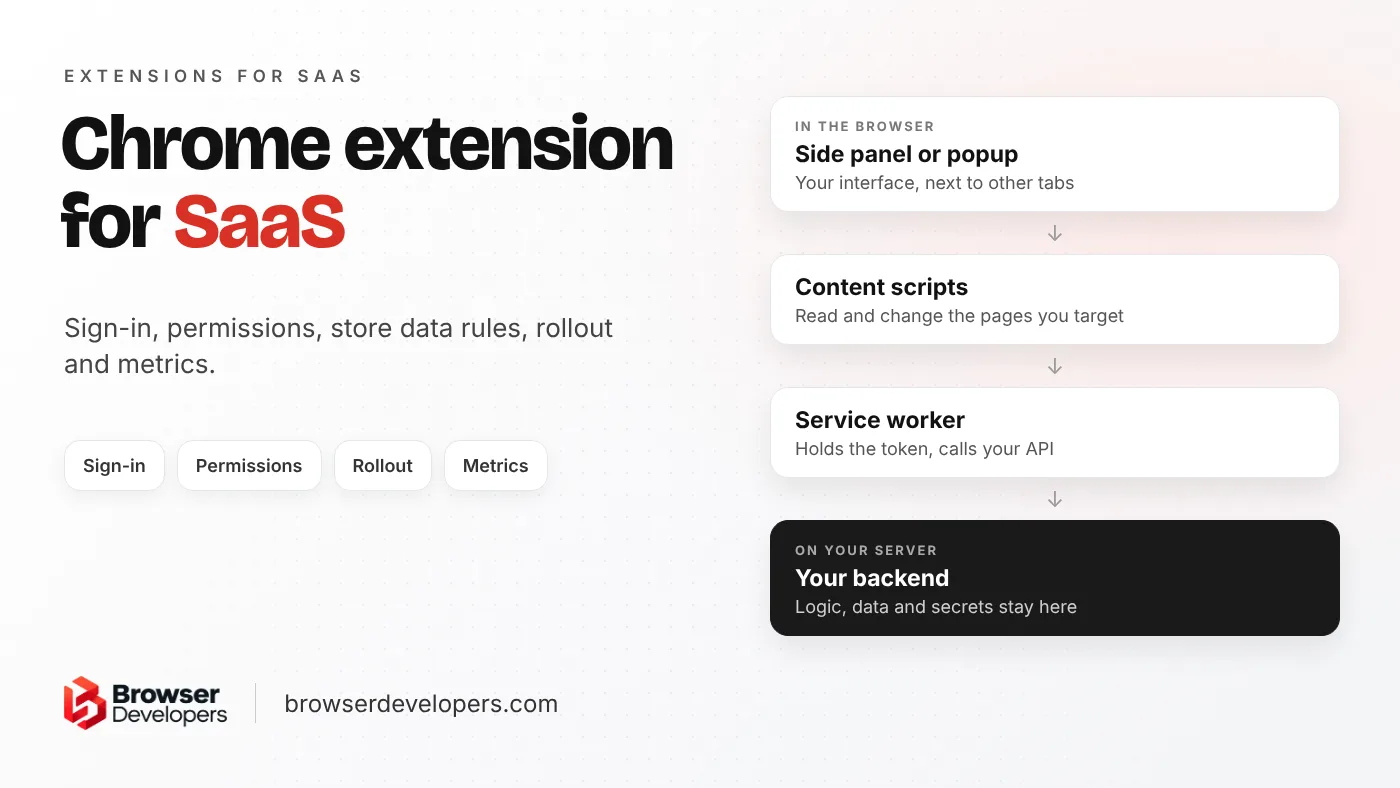
Most SaaS teams come to an extension for the same reason: users spend their day in other tabs, such as webmail, a CRM or LinkedIn, and copy data between those tabs and your app by hand. An extension brings your product to where that work happens. This guide covers the SaaS side of the job: sign-in, permissions, data rules, rollout and metrics. For Manifest V3 basics, read our Manifest V3 extension guide.
What can a Chrome extension do for a SaaS product?
It puts your product inside the pages your users already work in. Common jobs are saving something from any page into your app, a side panel next to other tools, data from your app shown on sites like a CRM or webmail, filling in forms, and alerts on the toolbar icon.
| What it does | Example | Main parts | Typical access |
|---|---|---|---|
| Save to your app | Save a page, contact or job post | Popup, service worker | activeTab |
| Work beside other tabs | Notes, AI assistant, support replies | Side panel | activeTab or your API only |
| Show your data on other sites | CRM details next to an email | Content script | Those sites only |
| Fill in forms | Insert saved replies or records | Content script | Those sites only |
| Alerts | New tasks or messages | Service worker with chrome.alarms, toolbar badge | Your API only |
The side panel API (Chrome 114 and later) is often the best fit for a SaaS tool. It stays open next to whatever page the user is on, so your product sits beside their other tools instead of covering them.
How is a SaaS Chrome extension built?
It has four parts: a popup or side panel for the interface, content scripts that read and change web pages, a service worker that talks to your API, and your existing backend. The extension holds no shared secrets and no business logic. Your server does the real work.
Side panel or popup
Your interface, built with the same web stack as your app.
Content scripts
Read and change the pages you target. Treat everything they send as untrusted.
Service worker
Holds the token and calls your API. Chrome can stop it after 30 seconds idle.
Your backend
Business logic, data and secrets, exactly as for your web app.
Three rules keep this design safe and easy to change:
- No secrets in the package. The extension is downloaded to every user’s computer, so an API key or shared secret inside it can be read. Call your own API with the user’s token instead.
- Content scripts are the weak point. Chrome’s messaging guide says to assume messages from a content script might have been crafted by an attacker, and that data sent to a content script might leak to the web page. Keep tokens and privileged calls in the service worker.
- Expect the service worker to stop. Chrome shuts it down after 30 seconds without activity, so anything held only in a variable is lost. Save state to chrome.storage.
On extension projects we test the cases users actually hit before release: an idle browser, a revoked permission and a strict site. That way they are found in testing, not reported by your users.
How do users sign in to your SaaS from the extension?
Use chrome.identity.getAuthToken for Google accounts in Chrome, chrome.identity.launchWebAuthFlow for your own OAuth or single sign-on provider, or let your web app hand its session to the extension through externally_connectable. Keep tokens in chrome.storage.session, not in content scripts.
Pick the sign-in method by how your users already log in to your web app:
| Method | Use it when | Watch out for |
|---|---|---|
| chrome.identity getAuthToken | Users sign in with a Google account | Chrome only, not Edge or Firefox. Needs an OAuth client ID in the manifest’s oauth2 section |
| chrome.identity launchWebAuthFlow | You run your own OAuth or single sign-on | Register the extension’s redirect URL with your provider, per browser |
| Session handed over by your web app | Users are already signed in to your web app | Not available in Firefox. Check the sender, and list only your own domains |
How does launchWebAuthFlow work with your own login?
launchWebAuthFlow opens your provider’s login page in a separate window. When the provider redirects to a URL matching https://<extension-id>.chromiumapp.org/*, the window closes and the extension receives the final URL with the code or token. Get the exact URL from chrome.identity.getRedirectURL() and add it to your provider’s allowed redirects.
Firefox supports launchWebAuthFlow, but not getAuthToken, and uses its own redirect address. Since Firefox 75, the redirect URL must be the one getRedirectURL() returns, so register one for each browser you ship to.
How does your web app hand its session to the extension?
List your domain in the extension’s externally_connectable key. Your signed-in page can then send a message to the extension by its ID, and the extension receives it in onMessageExternal. Without the key, no web page can connect. Chrome’s security guide says to always check that the sender is a trusted source, as the code below does.
"externally_connectable": {
  "matches": ["https://app.example.com/*"]
}chrome.runtime.onMessageExternal.addListener((msg, sender, reply) => {
if (sender.origin !== 'https://app.example.com') return
if (msg.type === 'session' && typeof msg.token === 'string') {
chrome.storage.session.set({ token: msg.token })
reply({ ok: true })
}
})Where you keep the token matters. chrome.storage.session is held in memory, is not exposed to content scripts by default, and is cleared when the browser restarts and whenever the extension is updated, reloaded or disabled. chrome.storage.local is exposed to content scripts by default. So keep short-lived tokens in session storage, and plan how the extension gets a fresh one after a restart or an update, for example by asking your web app again.
Which permissions does a SaaS extension need?
As few as the feature needs. Use activeTab where you can, because it shows no install warning. Limit host permissions to your own API and the sites you target, and ask for extra access at runtime with optional permissions. Adding a warning-level permission in an update disables the extension until users accept it.
- activeTab first. It gives temporary access to the page the user is on when they click your extension, and it shows no permission warning. A “save to app” button rarely needs more.
- Name your sites. If a content script must run on its own, list only the sites it works on, plus your API, instead of every site.
- Ask later. Request access for extra features at runtime with optional permissions, when the user turns the feature on.
- Plan permissions before launch. If an update adds a permission with a new warning, Chrome disables the extension until the user accepts it. For a SaaS product, that looks like the integration stopped working, with no error in your logs.
Narrow permissions with a written reason for each, and no remotely hosted code, remove two common causes of rejected or delayed reviews. Our Chrome Web Store publishing guide covers the review itself.
What do Chrome Web Store rules mean for your SaaS data?
The extension must have one narrow purpose, and user data may only be used to provide or improve it. Selling data and using it for personalized ads are banned, and people may read it only in narrow cases such as the user’s consent. All code must ship in the package, but data from your API can change at any time.
- One purpose. The store requires a single purpose that is narrow and easy to understand. Keep it to the one job your product does in the browser, and leave unrelated extras out.
- Limited Use. Under the Limited Use policy, user data may be used only to provide or improve that purpose. Selling it and using it for personalized ads are banned. People may read it only with the user’s consent, for security, to follow the law, or when it is aggregated and anonymized. You must also say on your website that you comply.
- Code ships in the package. In Manifest V3, all extension logic must be in the extension, so a new feature in the extension means a new store review. Data and settings from your API can change without one. Put things that change often, such as field mappings or text, on the server.
How do you roll a SaaS extension out to customer teams?
Publish it on the Chrome Web Store, then let your customers’ IT admins force-install it with Chrome Enterprise policies. Admins can also pre-set values such as your customer’s workspace URL through managed storage, so users start already configured.
- Public or private listing. Most SaaS extensions are public. You can also publish a private or unlisted one, as our publishing guide explains.
- Force-install for whole teams. Chrome’s enterprise page says admins can install extensions automatically and silently for users in their organization. Write a one-page guide for your customers’ IT teams with your extension ID.
- Pre-set each customer. Managed storage is read-only for the extension and set by admins through policy, using a schema you name in the manifest’s managed_schema key. Use it for values such as the customer’s workspace URL or sign-in domain.
- Other browsers. The same code base can usually target Edge, Brave and Firefox with a thin layer for the differences. The biggest one for SaaS is sign-in: Edge and Firefox have no getAuthToken, so use launchWebAuthFlow there, and Firefox cannot receive messages from your web page. Safari needs the extension packaged inside an app. Our Manifest V3 guide lists the differences.
How do you measure whether a SaaS extension is working?
Use the Chrome Web Store dashboard for installs, uninstalls and store impressions, but count active users in your own backend. The store’s Users figure counts installations only, not whether people use the extension. Add an uninstall survey with chrome.runtime.setUninstallURL.
The Chrome Web Store dashboard shows daily installs and uninstalls, store impressions and weekly users, broken down by country, language and operating system (and by version for users). You can also opt in to Google Analytics data for your store listing, which is not user-level. One trap: the Users figure counts installations only, and Chrome’s docs say it does not track whether users are active.
For a SaaS product, measure these in your own backend instead:
- Activation: how many installs reach a signed-in API call.
- Weekly active extension users: signed-in users who make a call from the extension.
- The job done: items saved, records filled or replies sent from the extension.
- Why people leave: set a survey page with chrome.runtime.setUninstallURL.
How long this takes and what it costs depends on scope. Our Chrome extension cost guide breaks down the price, and a browser extension typically takes 3–8 weeks, as our timeline guide shows.
Final takeaway
Treat the extension as a small, trusted window into your product, not a second product. Sign-in, data and logic stay on your server, permissions stay narrow, and your own metrics tell you whether it is used.
Frequently asked questions
Can my web app tell whether the extension is installed?
Yes, if your domain is listed in the extension’s externally_connectable key. Your page sends a message to the extension’s ID with chrome.runtime.sendMessage, and only an installed extension can answer. This works in Chrome and Edge, but not in Firefox.
How do I show a welcome page after someone installs the extension?
Listen for chrome.runtime.onInstalled in the service worker. When the reason is "install", open your sign-in or welcome page in a new tab. The same event also fires on updates, so check the reason first.
How much data can a Chrome extension store?
chrome.storage.local holds 10 MB (5 MB in Chrome 113 and earlier), or more with the unlimitedStorage permission. chrome.storage.session holds 10 MB in memory. For a SaaS product, keep the real data on your server and store only tokens, settings and a small cache.
Planning an extension for your SaaS product?
Tell us what users should be able to do from the browser. We will map the sign-in, the permissions and the store review before you commit. See our Chrome extension development service.